
Portals for Tableau 101 shares the basics of interacting with InterWorks' embedded analytics solution, Portals for Tableau.
Curator by InterWorks is a portal platform that unifies your dashboards, AI apps and AI artifacts in one place. Learn more: interworks.com/curator
If you’ve used the report builder functionality in Portals for Tableau before, you already know that it can build a Microsoft PowerPoint presentation of one or more of your Tableau dashboards. What you may not know is that you can set a template for the presentation that is automatically applied whenever you use the report builder.
To create a template, open Microsoft PowerPoint and create a new presentation. Next, click on the View ribbon and then the Slide Master button.
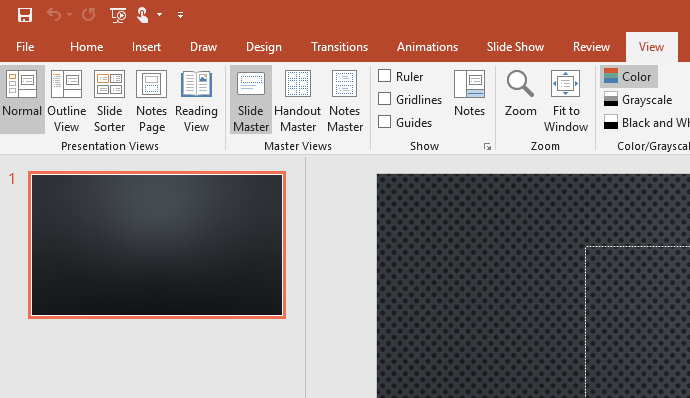
When the Slide Master loads, there should be numerous layouts. The important one to look for is that there’s a Blank layout. This is the layout used by the report builder.
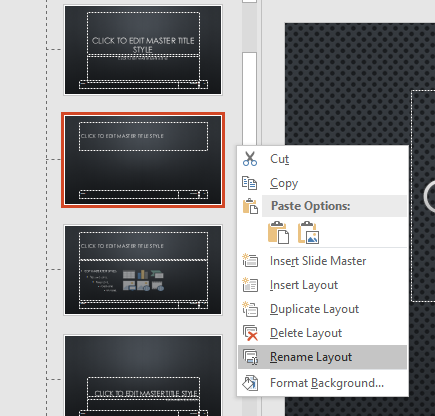
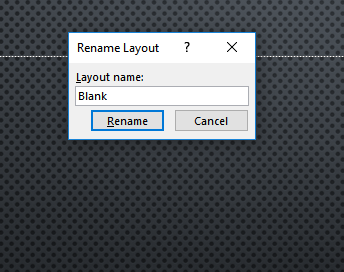
If your Slide Master doesn’t have this layout, right-click in the left pane and select Insert Layout. Then, right-click on the newly created layout and select Rename Layout. In the pop-up, change the name to Blank and click the Rename button.
Lastly, save this presentation in an easy-to-find location on your computer. Back in your portal’s backend, navigate to Settings > Portal Settings > Layout, upload the presentation into the field named Powerpoint Template and click the Save button. Now, whenever a user uses the report builder to export a PowerPoint presentation, it will be created using your template.
For added excitement, you can use the group override functionality to use different templates for various Tableau user groups.