
Please note that Portals for Tableau are now officially known as Curator by InterWorks. You can learn more at the official Curator website.
This blog post is Human-Centered Content: Written by humans for humans.
You’ve done the hard work — built a clean portal, organized the navigation and connected the right data. But if your users are still asking the same questions, skipping features or just not logging in as often as you’d expect, the issue usually isn’t the dashboards. It’s the gap between, “here’s the data” and, “here’s how to get value from it.”
Curator’s Tutorials feature is one of the most underused tools for closing that gap, and it’s simpler to set up than most people realize.
What Tutorials Actually Do
Tutorials let you embed a guided, step-by-step walkthrough directly on any dashboard page in your portal. When a user lands on the page, they can be greeted with contextual guidance — a short sequence of callouts that point to specific elements, explain what they’re looking at and walk them through any actions available to them.
It’s in-context onboarding, without a separate training session or a document no one reads.
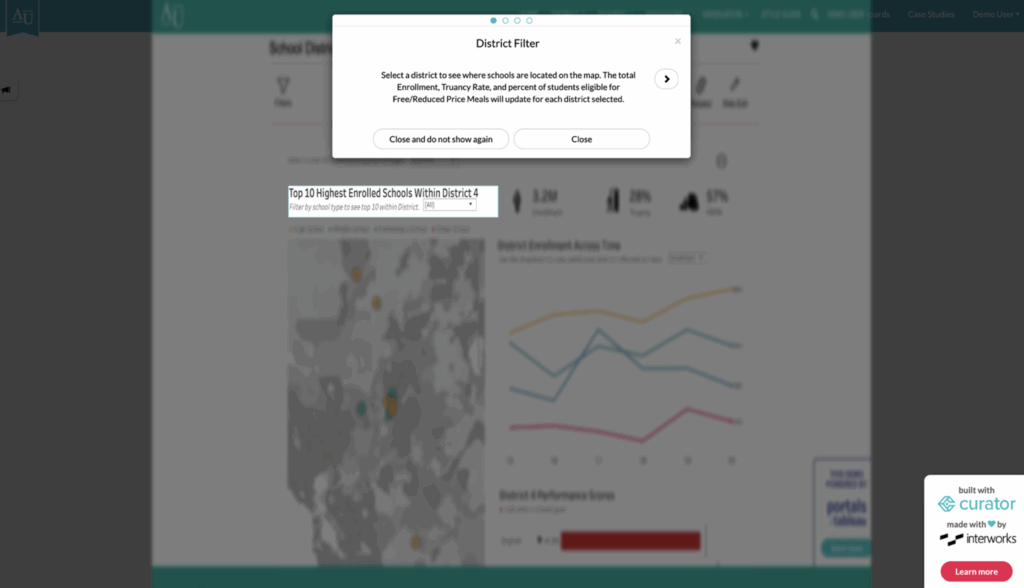
Above: A Tutorial walkthrough in action — contextual guidance appears directly on the dashboard, pointing users to exactly what they need without ever leaving the page.
Where This Tends to Make the Biggest Difference
The most common place to start is new user onboarding. If you set a Tutorial to trigger automatically on a user’s first visit to a dashboard, they get oriented immediately — no guesswork, no hesitation. That first-visit experience has a real impact on whether someone becomes a regular user or quietly drifts back to their spreadsheet.
The second use case is feature discovery. Most users won’t explore on their own, so capabilities like Report Builder or sticky filters often go unnoticed unless you point them out. A Tutorial step that says, “click here to export this as a PowerPoint” can turn a feature you’ve already built into part of someone’s actual workflow.
And when you update a dashboard — new views, restructured navigation, added filters — a Tutorial is a clean way to communicate what changed without relying on an email announcement. Users get a quick walkthrough in context, right when it matters.
Setting One Up
Tutorials are configured in the Curator backend alongside your other page settings. Navigate to the page you want to add a walkthrough to, open the page settings and look for the Tutorial option. From there you define each step — point it at a specific element on the page, write a short line of guidance and move to the next. You can set it to trigger automatically on first visit or let users launch it manually from the page whenever they want a refresher.
Most Tutorials take under an hour to put together, and they don’t require any developer involvement.
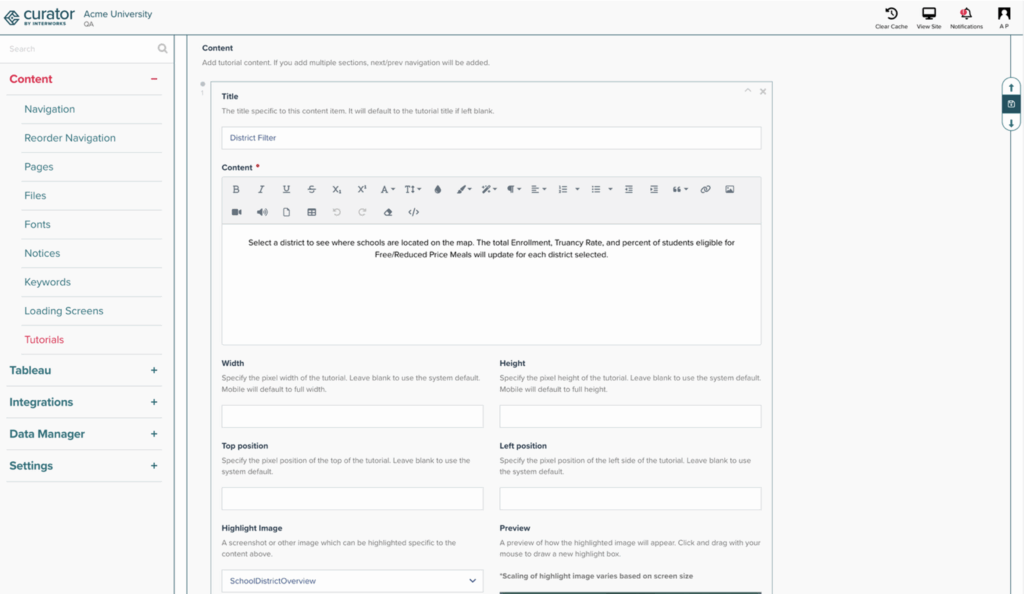
Above: Setting up a Tutorial takes just a few minutes in the Curator backend — no development required. Define your steps, point them at elements on the page, and you’re done.
The Bottom Line
Adoption problems are almost always experience problems. When users understand what they’re looking at and know what to do with it, they come back. Tutorials are a low-effort way to make that happen — and they work quietly in the background long after you’ve set them up.
If you haven’t built one yet, your highest-traffic dashboard is a great place to start.
👉 Check out the Curator documentation to get started
Have a specific dashboard in mind, or want help thinking through what a Tutorial for your portal should cover? Reach out to your InterWorks TAM directly, or send us a note at curator@interworks.com — and we’ll be happy to help you work through it.
