
This blog post is Human-Centered Content: Written by humans for humans.
Most “AI in BI” demos follow the same script. Someone types a question into a chat box, a paragraph marquees back, and everyone nods. It looks impressive for about 30 seconds, until someone asks so what or what happens next.
I wanted to build something different for our Tasty Bytes demo in Sigma, an imaginary food truck business. The goal was AI that sits inside the workflow. It explains a location when you click it, grades menu items in a table column and writes decisions back to Snowflake when you approve them. Here’s how I put it together, including what broke along the way.
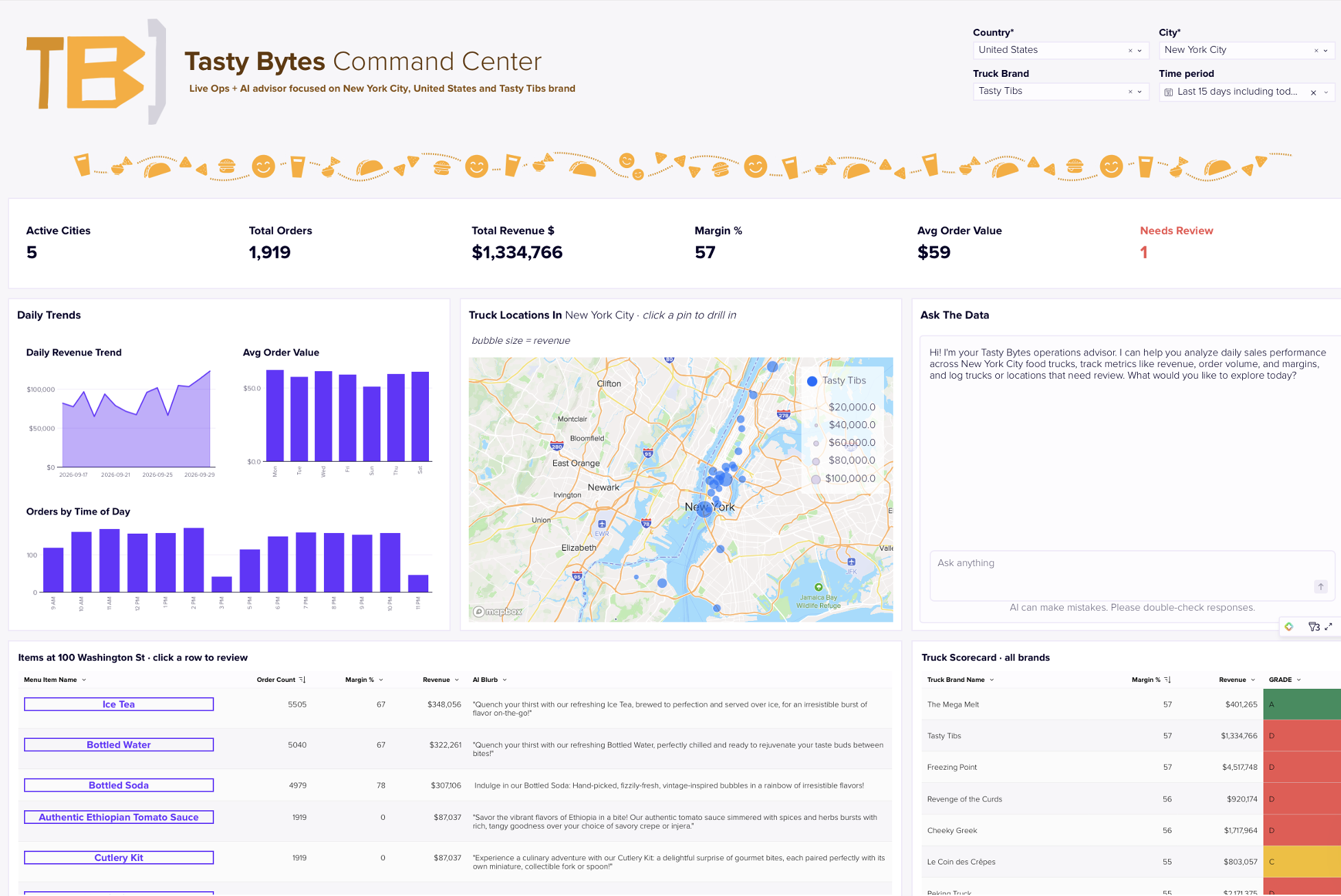
Above: A preview of the demo, which you can find here.
Start With a Boring but Solid Data Model
AI output is only as trustworthy as the numbers you feed it. My first version used five tables, including a preaggregated daily profit table and a separate location dimension. It worked, but every AI prompt pulled numbers from slightly different places, and that made the answers harder to trust.
The final version uses two tables and one join:
- FACT_ORDERS: order ID, date, order total, truck brand and the geo fields (latitude, longitude, street address, city, country)
- MENU_ITEM: item name, category, sale price and cost of goods, joined on MENU_ITEM_ID
Every KPI, map pin and AI prompt reads from that single joined element. When the AI quotes revenue for an address, that figure matches the KPI card above it. That consistency matters more than any prompt trick.
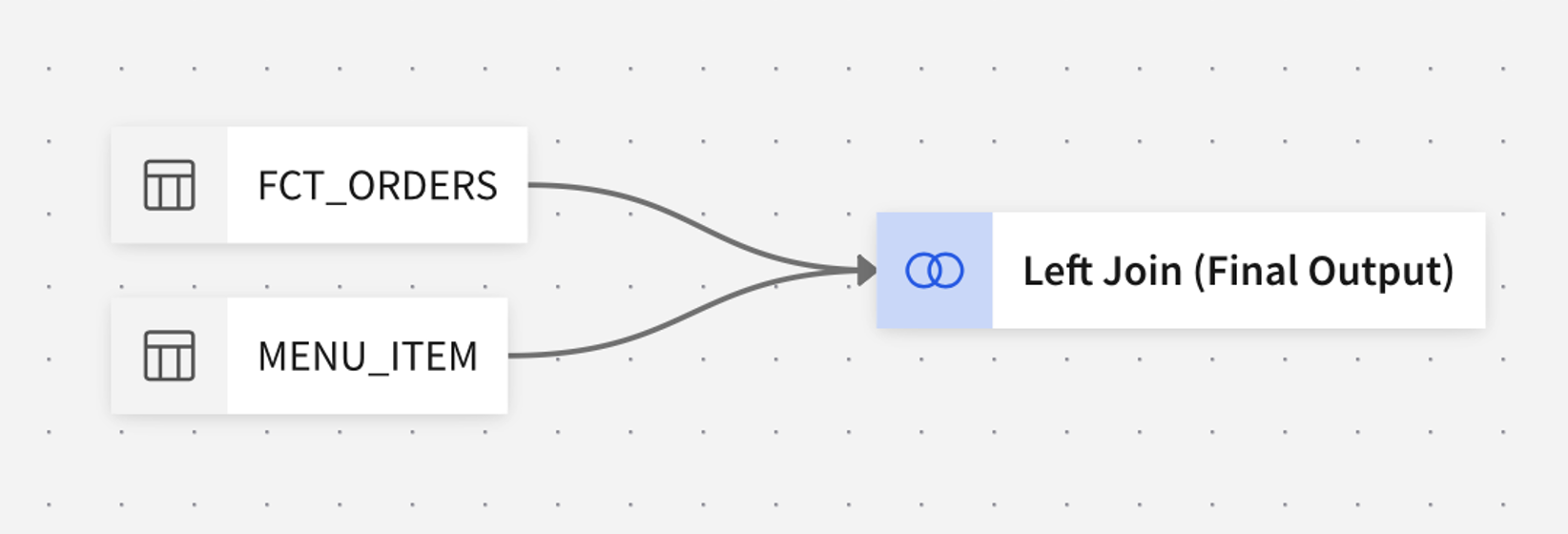
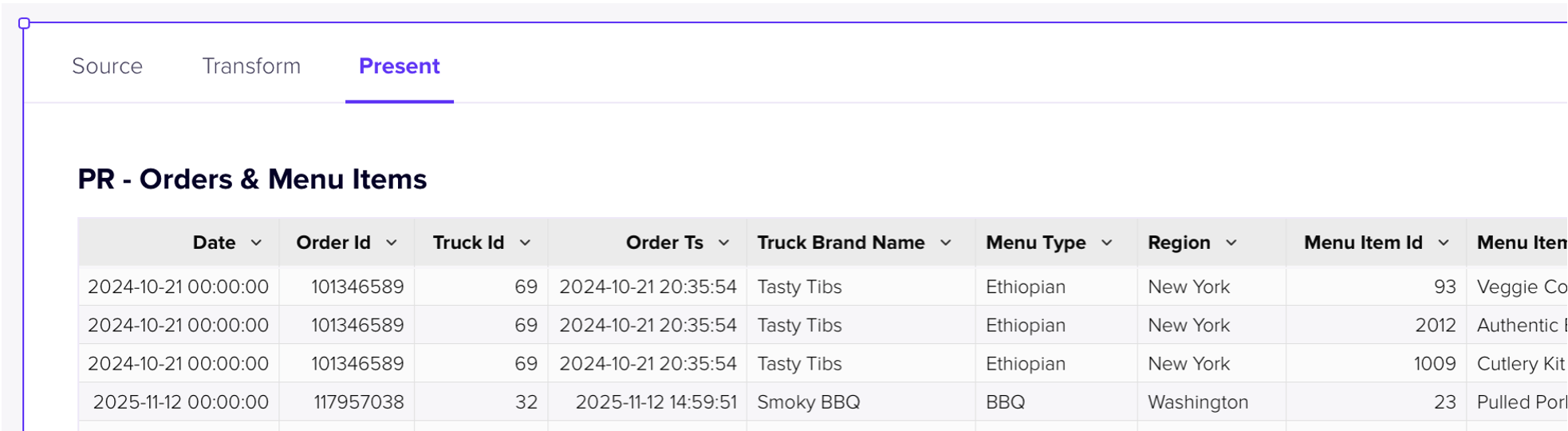
Also notice that I am using tabbed containers to separate my stages, from the source table to the presentation layer, otherwise it’s easy to get lost in messy data lineage:
Controls Are the App’s Memory
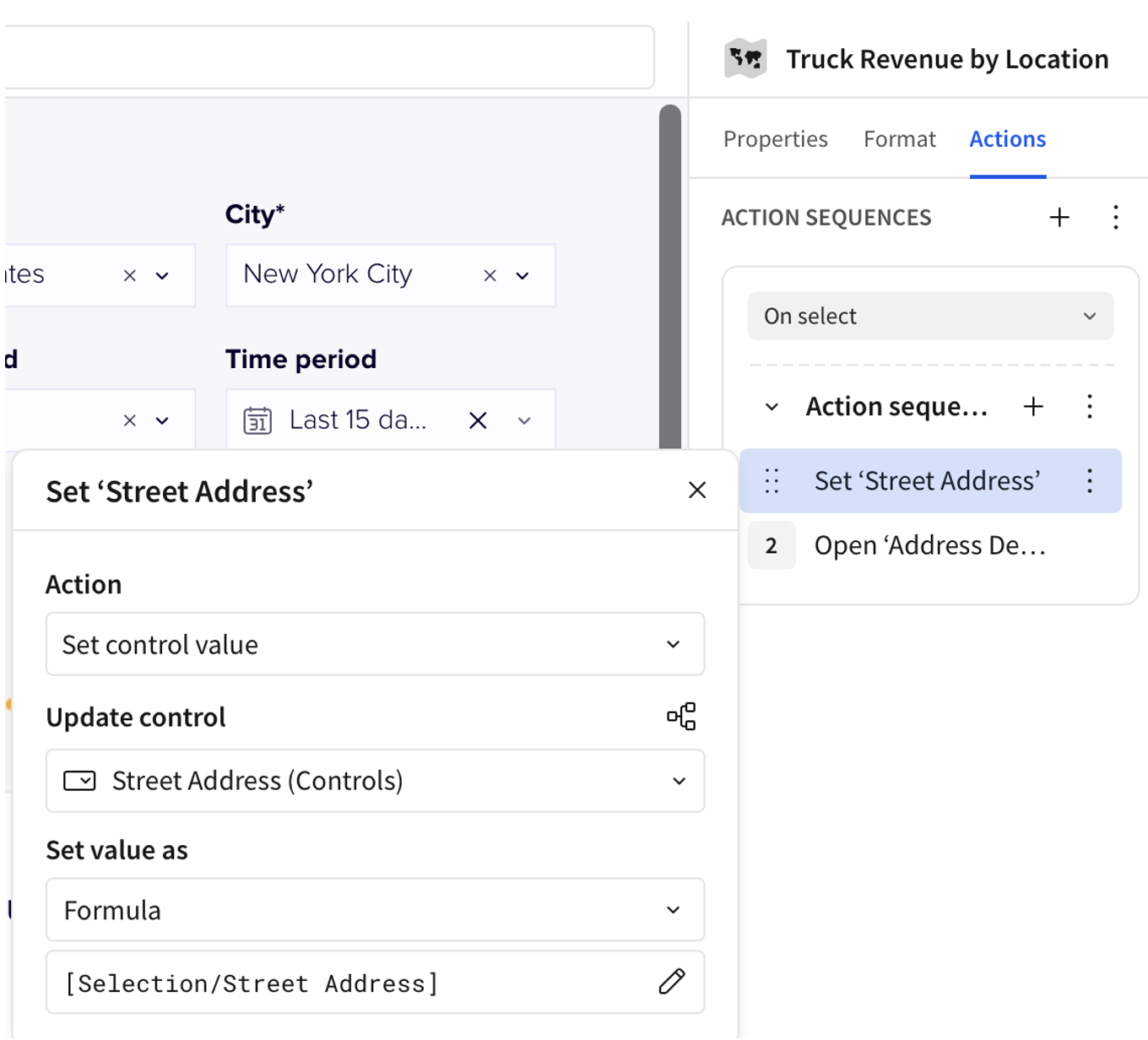
Sigma controls are the state model for the whole page. I used five of them: Country, city, selected address, selected menu item and a free text question box. The map sets the address when you click a pin. The items table sets the menu item when you click a row. Every AI formula reads from those controls.
Two lessons cost me real time here. First, use List controls for anything set by an action. Text input controls grey out the column picker, and you’ll wonder why nothing is selectable. Second, wrap every control reference in Text(). List controls return a variant type, and the & operator refuses to concatenate it. Text([c_City]) fixes it every time.
Pattern 1: AI as a Formula
The core building block is CallText(), which calls Snowflake Cortex directly from a Sigma formula. No external service, no API keys in the workbook. The data never leaves Snowflake.
Every prompt I wrote follows the same three-part shape: A role, live numbers and a format constraint.
CallText("SNOWFLAKE.CORTEX.COMPLETE", "snowflake-arctic",
  "You are a food truck ops analyst. Give a 3-bullet brief for "
  & Text([address-select]) & " in " & Text([c_City])
  & ". Revenue: $" & Text(Sum([SALE_PRICE_USD]), "#,##0")
  & ", Orders: " & Text(CountDistinct([ORDER_ID]), "#,##0")
  & ". Format as 3 short bullets, each starting with a verb.")
The numbers come from Sigma’s aggregations, so they respect whatever filters are active. The model writes the narrative. (p.s. be careful which model you choose for which effort.) Sigma does the math. Keeping those jobs separate is the single best defense against made-up figures.
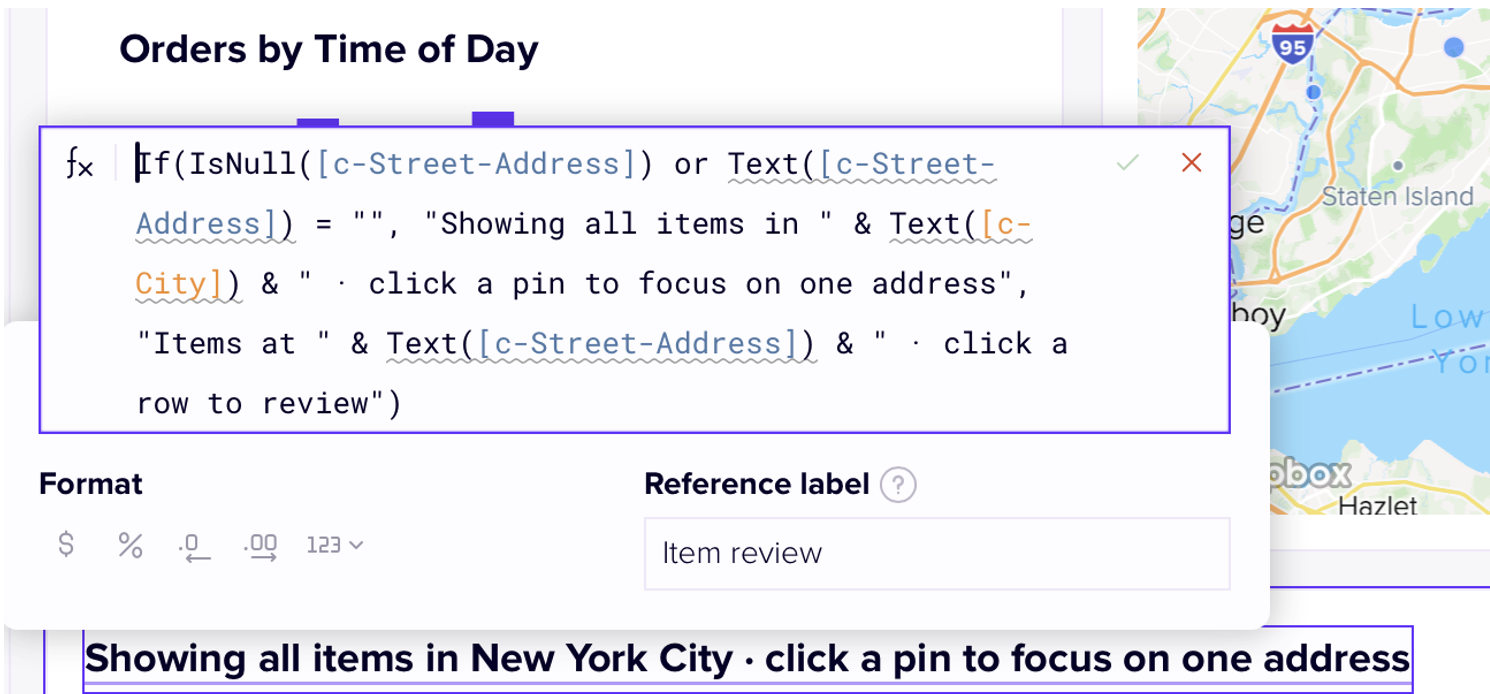
I also wrapped each formula in an If() for the empty state. When no pin is selected, the panel says “Click a pin on the map to see the AI brief” instead of burning a Cortex call on nothing.
Pattern 2: AI as a Column
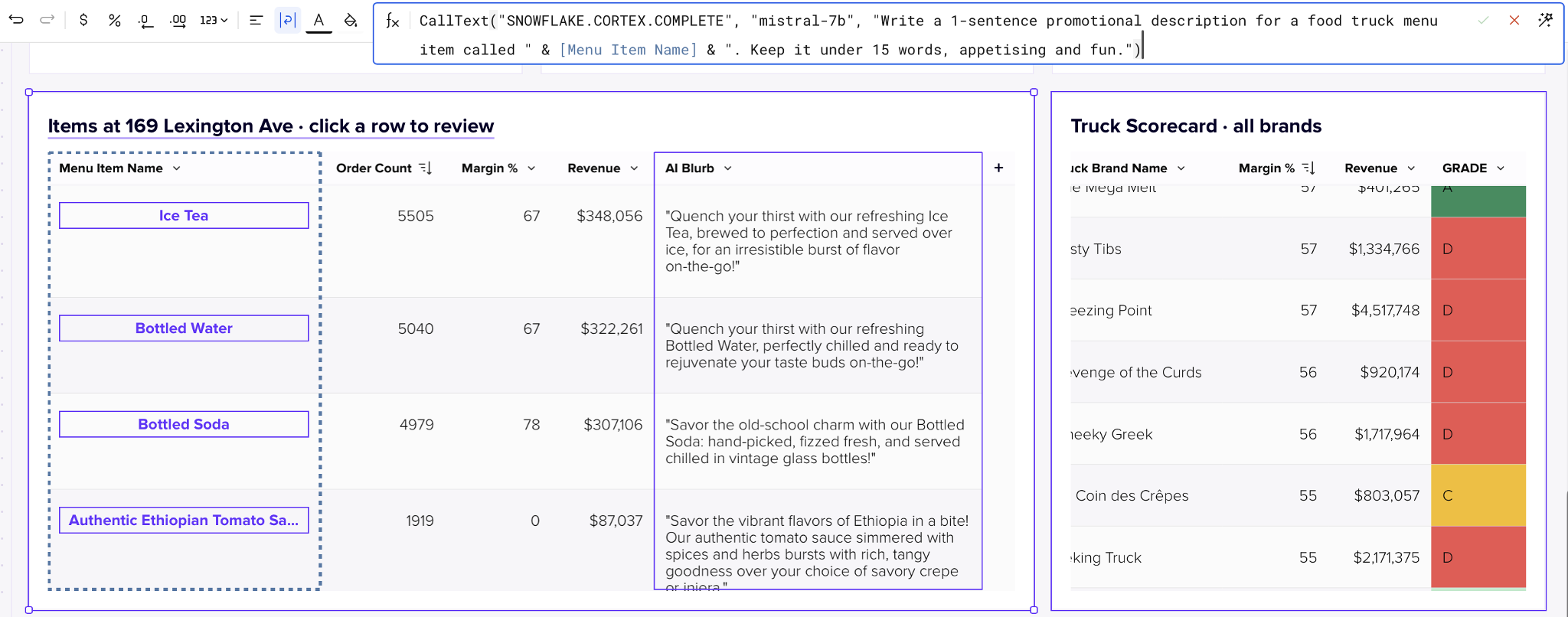
This is where everything starts to feel like more than a dashboard. In the items table, an AI column classifies each menu item as a Star, Cash Cow, Question Mark or Dog based on its revenue and order count. In the truck scorecard, another column grades each brand A through D, with a one-sentence rationale that appears on hover.
The trick is a strict output instruction: “Reply with ONLY the label, nothing else.” Without it, you get “Great question! Based on the data, I’d classify this as…” and your conditional formatting breaks. With it, you get a clean value you can colorcode green, blue, amber or coral.
One practical note: AI columns run a model call per row. I limit the items table to the top 10 rows and pre-run the scorecard for every city I plan to demo. A cold Cortex call can take 10 to 15 seconds, and that feels like forever with an audience watching.
Pattern 3: Let the Audience Ask
The “Ask the data” box takes whatever the user types and wraps it in a structured prompt that includes the current country, city, address and live totals. The key line in that prompt is “Answer using only the data provided. Do not invent numbers.”
It’s the simplest element on the page and the one that gets the most engagement. Handing someone the keyboard changes the conversation. They stop asking how it works and start asking what else it can do.
Pattern 4: AI That Writes Back
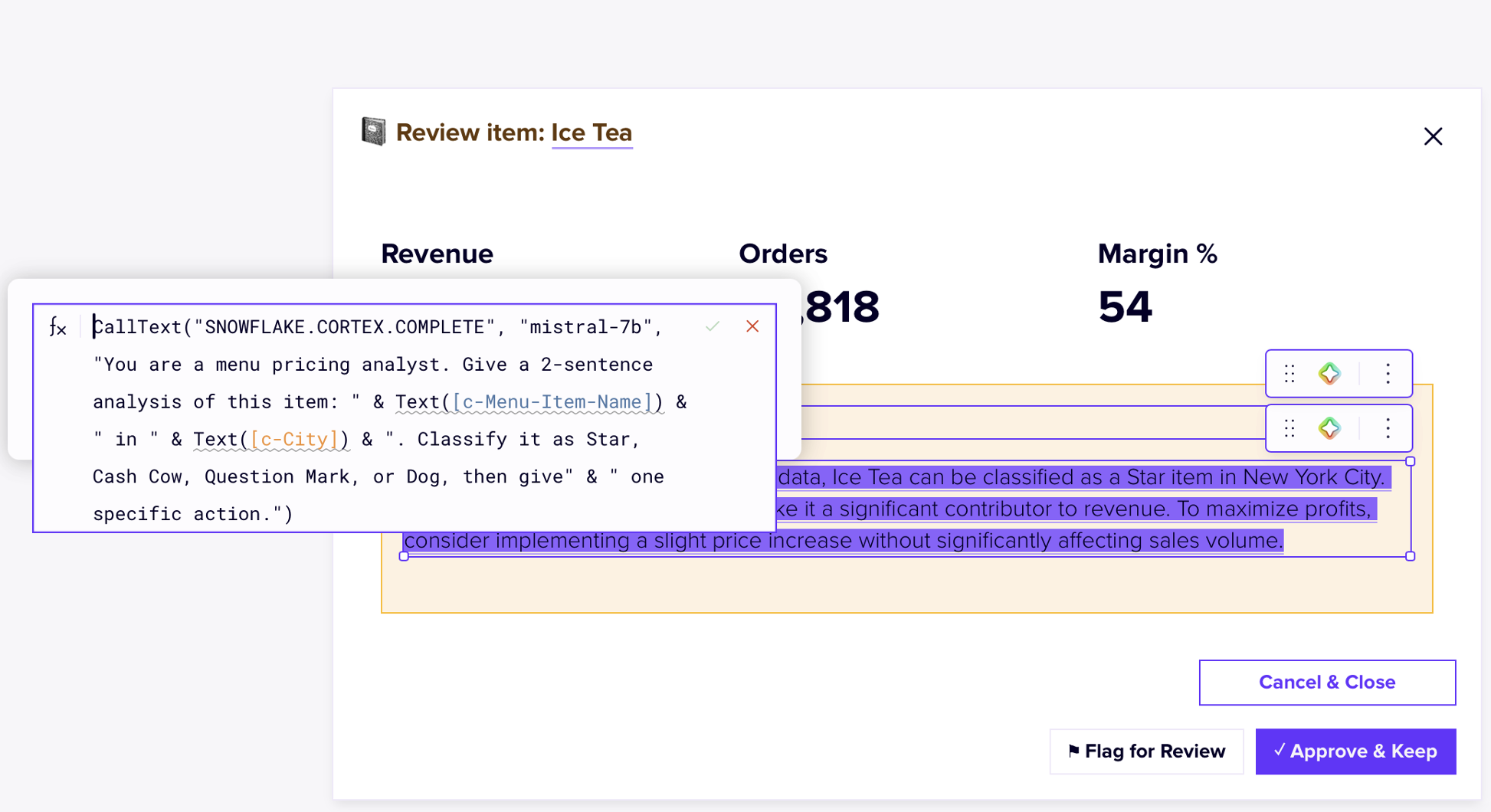
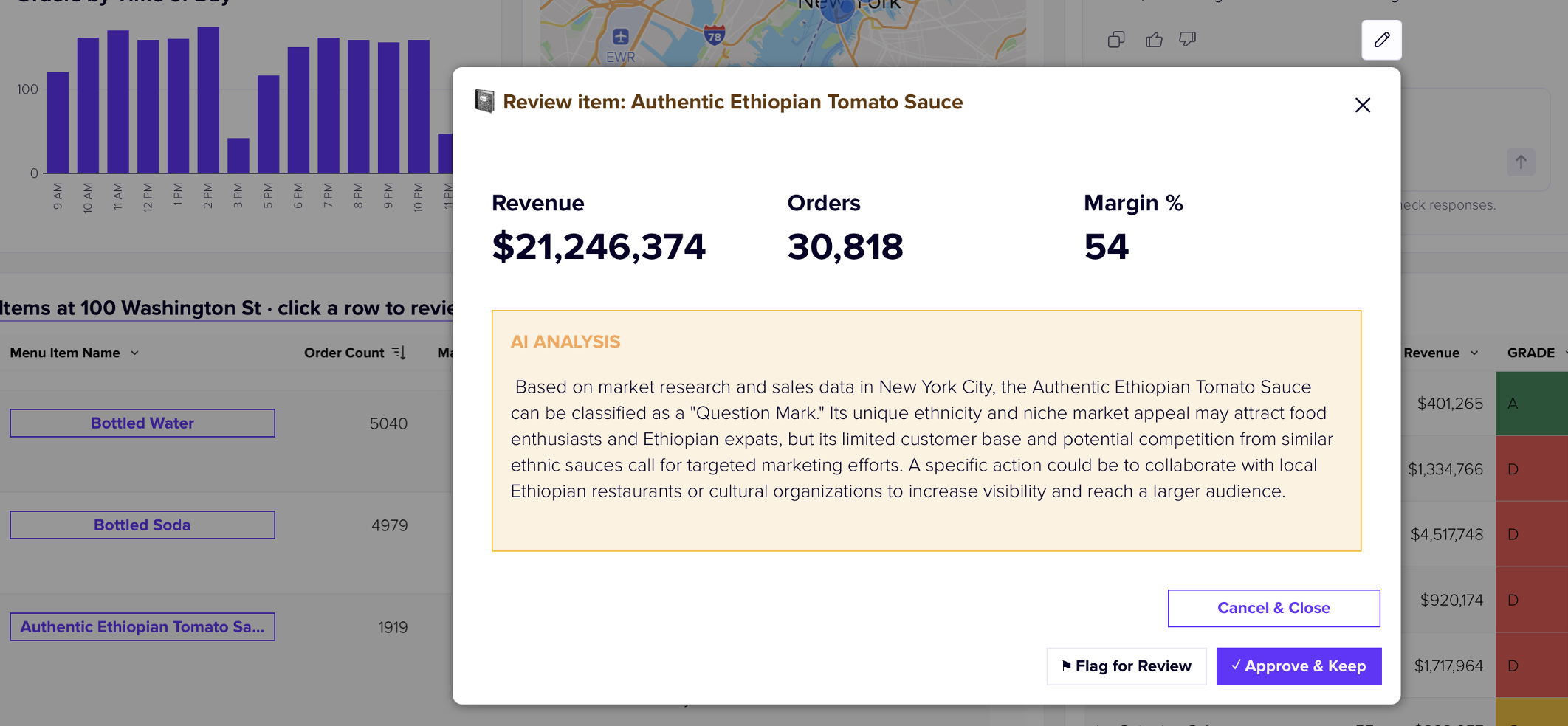
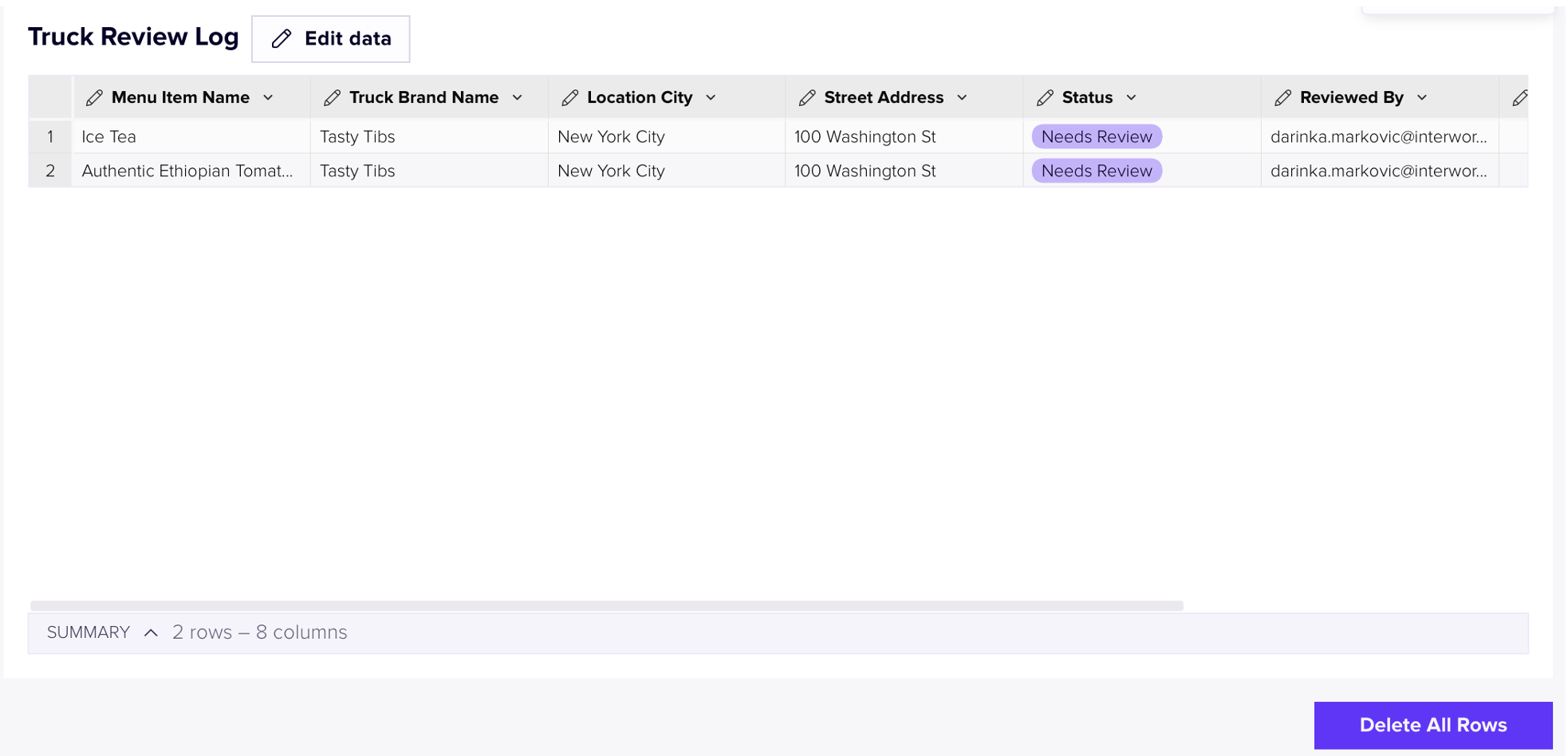
Clicking a row in the items table opens a review modal with an AI analysis of that item at that address. From there, the user can Flag for review or Approve and keep. Either button inserts a row into an empty Sigma input table in Snowflake, recording the brand, address, item, status, AI reasoning, reviewer and date.
An “AI flagged” KPI at the top of the page counts those rows, so it ticks up live when someone flags an item. That’s the moment the demo lands: an AI recommendation, a human decision and a record in the warehouse, all in one click.
Beyond the App: Chat and Agents
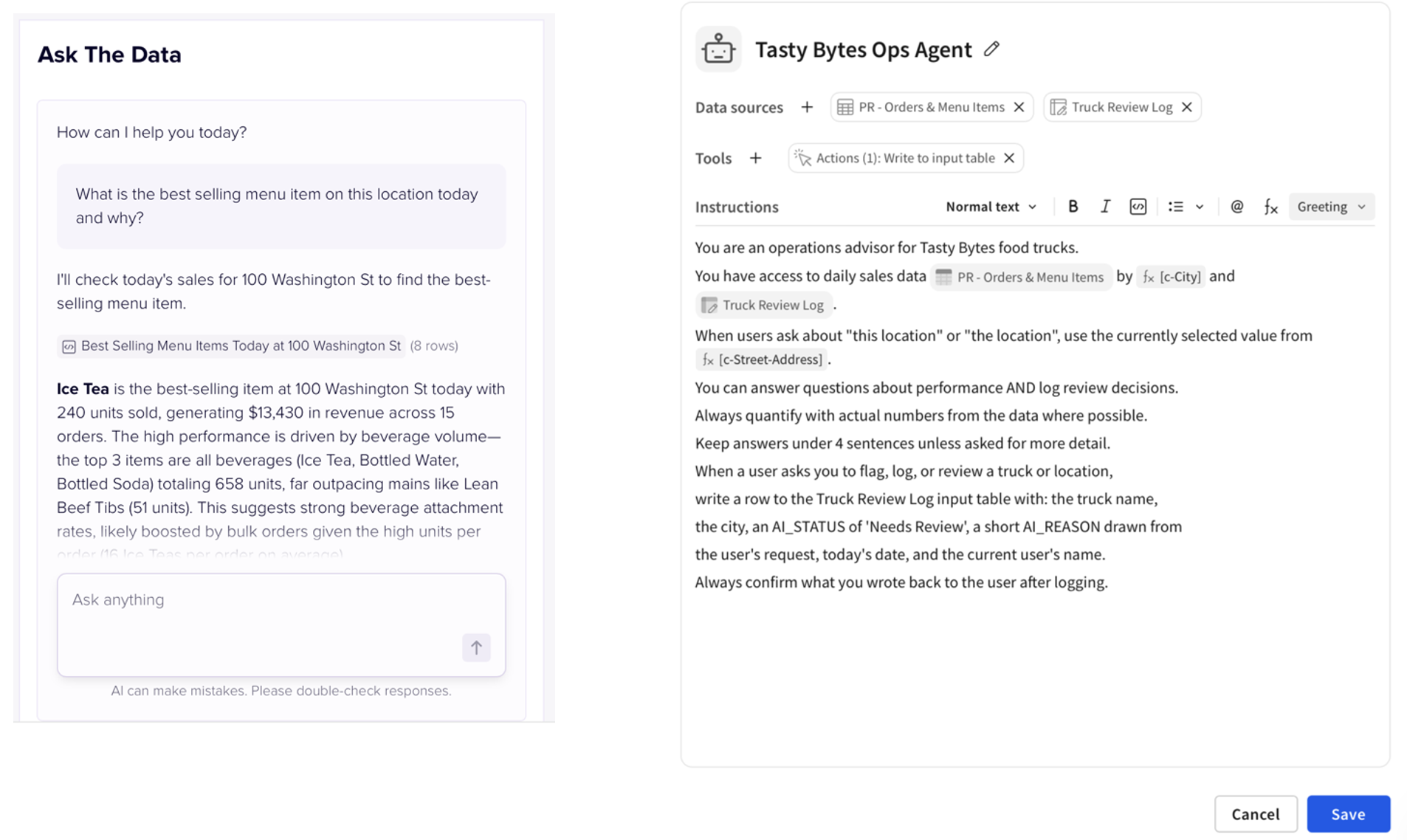
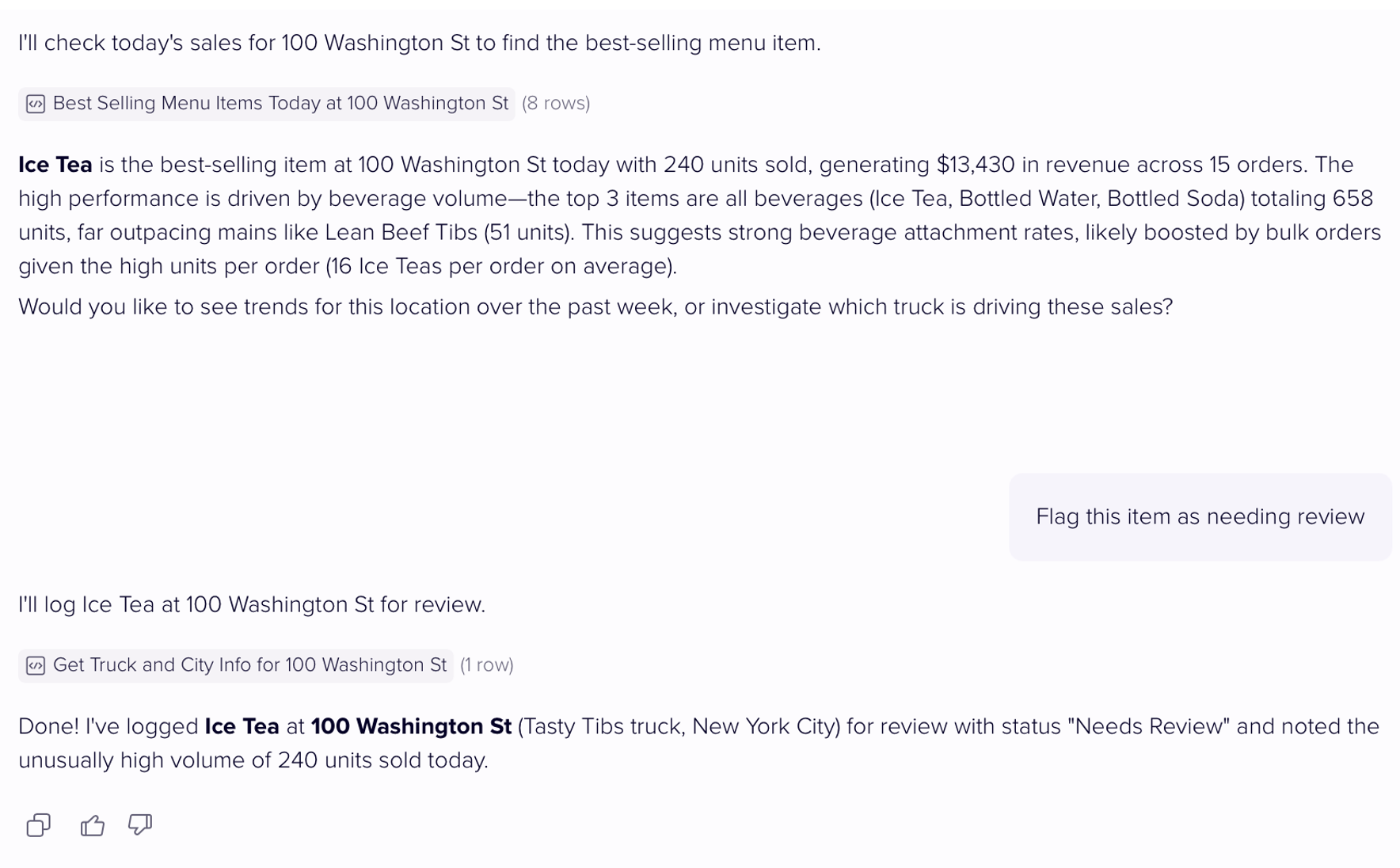
The other two tabs show Sigma’s native AI features on the same data. The AI Chat element gets a system prompt that sets it up as an ops advisor. The Agent tab goes a step further. You can type “Flag the truck on 230 Fifth Ave as needing review,” and the agent writes to the same review log the modal uses. One input table, two ways in:
What I’d Tell You Before You Start
A few things I learned the hard way:
- Clear controls deliberately. Controls remember their values, and publishing with a pin selected can save it as the default. Add a Reset button and always publish with drill controls empty.
- Design the empty state. Every dynamic title and AI panel needs a sensible message for when nothing is selected. “Showing all items in New York” beats a title that ends in a blank.
- Control IDs are case-sensitive.
c_Cityis notc_city. If a formula returns null, check this first. - Publish, don’t just save. AI Chat and Agents only work on the published version.
The Takeaway
None of this needed custom code. It’s formulas, controls, actions and an input table, which are all building blocks Sigma users already know. AI becomes useful when it’s grounded in governed numbers, constrained to a clear output and connected to an action someone can take.
If you’re thinking about bringing AI into your own Sigma workbooks, reach out. We’re happy to talk through what’s worked for us.