
This blog post is Human-Centered Content: Written by humans for humans.
Claude Code is revolutionary tool, allowing Anthropic’s leading LLM’s to control a terminal within your computer and execute commands. Claude Code can look through your code, make edits, and run it without you having to do anything other than approve its changes, and you can even have it do that as well.
However like many programming tools, it runs better on Unix-based operating systems like MacOS and Linux. On Windows problems can arise easily, particularly during the installation process. While this will certainly improve further over time, right now there are hoops to jump through to get Claude Code working on Windows 11. This guide is here to help you with that.
For MacOS and Linux users, Claude Code’s quickstart guide has one drop-in terminal command that can handle the full installation process with no problems. The Windows methods in this guide will not apply to you and they will not work (though we would be incredibly impressed if you made them work).
The easiest way to get Claude Code on Windows right now is through our custom install tool. You can go right to the release page on our tool’s GitHub page, download ClaudeCodeInstaller.exe, and run it as an Administrator. Select if you want it in your terminal, your VSCode app, or both, and let the tool do the rest.
Manual Installation Method
The alternative way is to do the full install process yourself, which some people will have to do due to their unique computer setups. You can see how to do that next.
In order for any of this to work properly, you first need to download Git for Windows. You will need this for Claude to track what is going on in some projects, and the terminal app outright requires it to install.
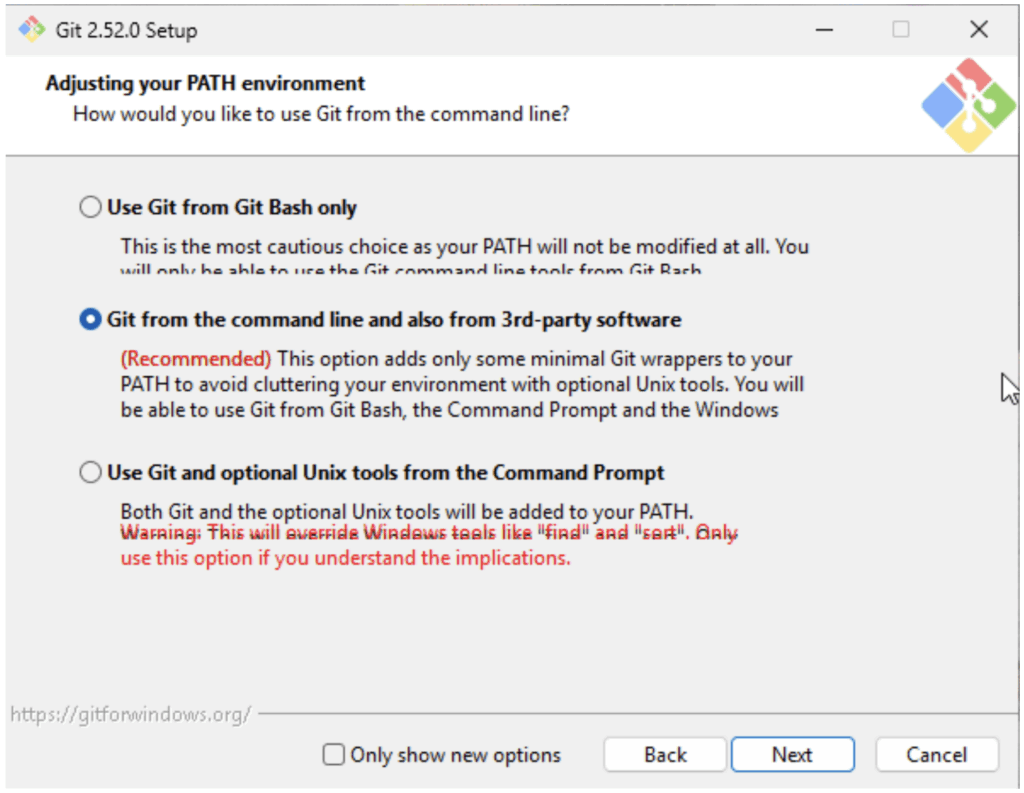
Use the default options in the installer for everything unless you know what you are doing. The most important part of this is that Git needs to be added to your Windows path, which is already selected by default here:
Once this is done, you can install Claude Code using the Windows PowerShell command. You can find this on the Claude Code Quickstart Guide. Open a PowerShell terminal as an Administrator, then copy the one-line PowerShell command and paste it in your terminal. It should run through the installation process and install it on your system.
If this works well, Claude Code should be accessible when the command is done running. However you will likely run into this very common issue.

Text in above image: “Native installation exists but C:\Users\Reid\.local\bin is not in your PATH. Add it by opening: System Properties->Environment Variables->Edit User PATH->New->Add the path above. Then restart your terminal.
If this happens, or a similar issue happens where it says “claude command not found”, there may be an issue with your Windows path.
You can fix this by:
- Pressing Win + R, typing sysdm.cpl, and pressing Enter. Click Advanced->Environment Variables.
- Under “User Variables”, select Path and click Edit. Click New and add:
%USERPROFILE%\.local\bin - Close or restart all open terminals.
After this, you can open any terminal and type “claude” and hit enter, and Claude Code will open. Select the options that apply to you, and sign in with either your regular Claude account or a dedicated API Console account, and you’re good to go.
Claude Code is the best drop-in general purpose agentic system we use at InterWorks at time of writing. It is incredibly capable, very responsive, and can help you with everything from editing PowerPoints to writing complex web applications, and it helps you with everything in between. If you want to choose an AI tool right now, Claude Code is a great choice, and we hope this guide helped you get it running.
